Updated for 2026 · Free setup help included
Strong 8K Setup Guide for Every Device
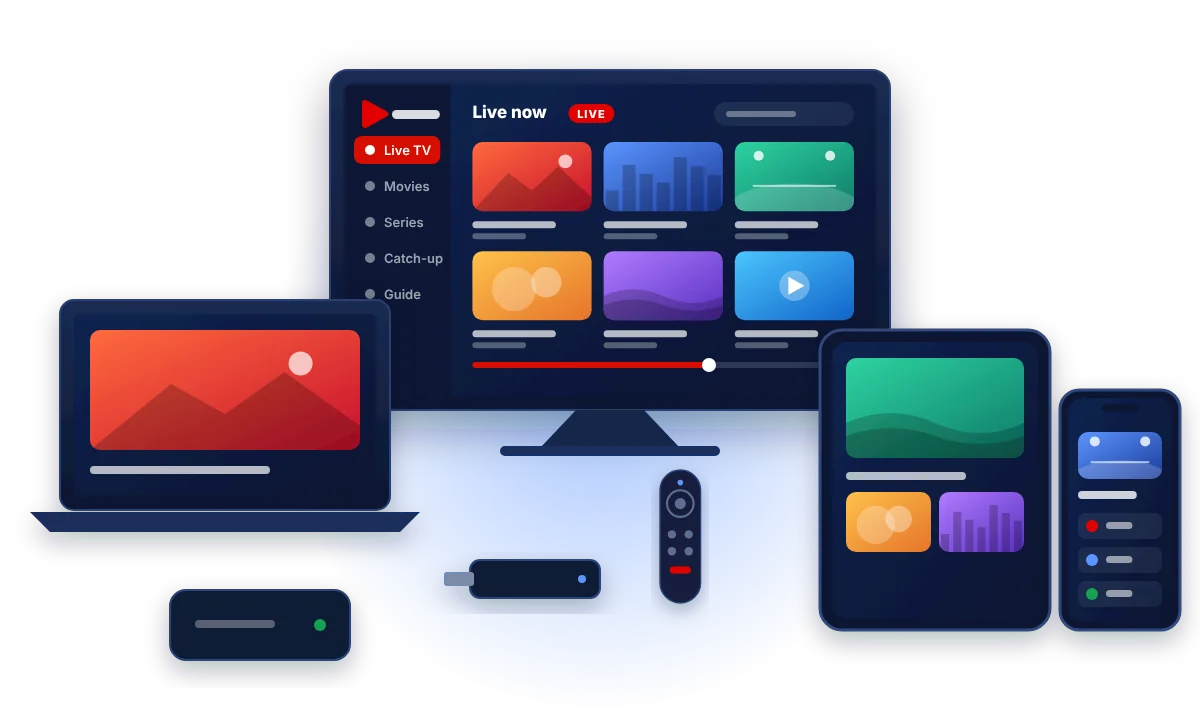
Whatever you watch on, setting up Strong 8K follows the same idea: install a player app, enter the login we send you, and let the channels load. Pick your device below for exact steps.
Quick answer
To set up Strong 8K, install an IPTV player app on your device (such as IPTV Smarters Pro, TiviMate or IBO Player), choose the Xtream Codes login option, and enter the username, password and server URL we send you. Channels, films and the TV guide then load automatically, usually in under a minute.
Step 1
Choose your device
Each guide takes about five to ten minutes. Firestick and Smart TVs have their own detailed pages.
Step 2
Know your login type: Xtream Codes, M3U or MAC
Strong 8K supports three ways to log in. Your app decides which one you use, and we send whichever you need.
| Login type | What you enter | Used by | Our tip |
|---|---|---|---|
| Xtream Codes API | Username, password and server URL | IPTV Smarters Pro, TiviMate, XCIPTV, most modern apps | Best choice: loads channels, films, series and the EPG in one go |
| M3U playlist | One long link that contains your login | VLC, GSE Smart IPTV, Enigma2 and older apps | Works everywhere, but the guide may need a separate EPG link |
| MAC address / portal | Your device’s MAC address, which we register | MAG boxes and apps such as IBO Player on Smart TVs | Send us the MAC shown in the app and we activate it |
Tip: type your username and password exactly as sent. They are case-sensitive, and an extra space at the end is the most common reason a login fails.
Android TV, Google TV & Android boxes
How to set up Strong 8K on Android TV and boxes
Android devices give you the widest choice of apps. Most players are in the Google Play Store, so there is nothing to sideload.
- Open the Google Play Store on your TV or box.
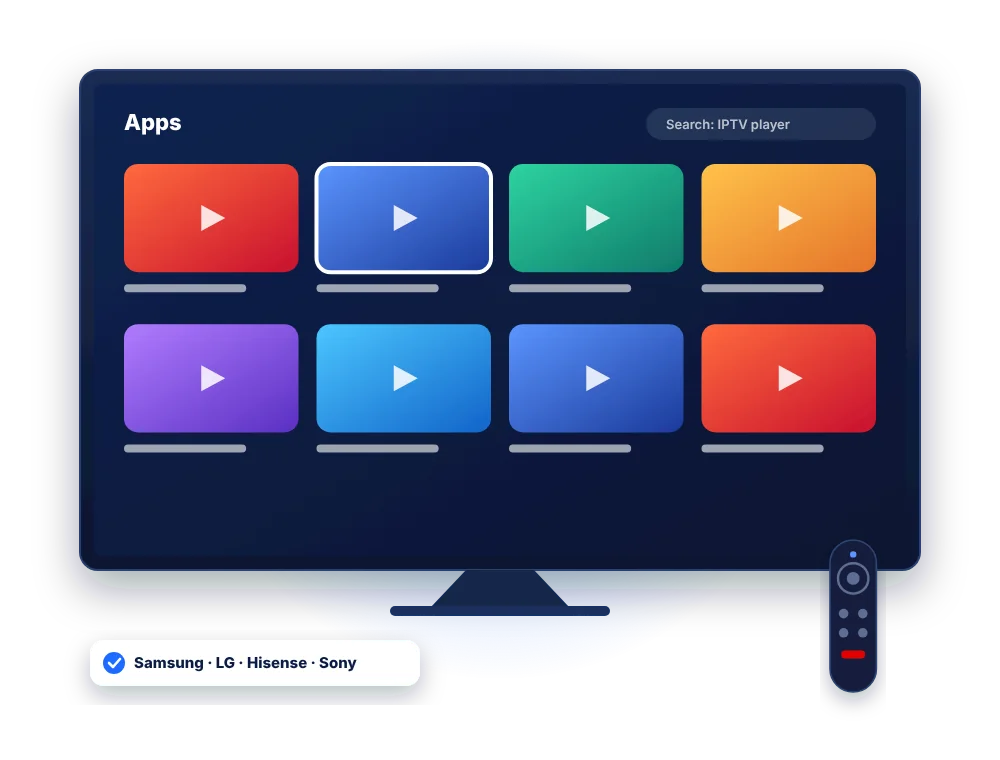
- Search for your chosen player, for example TiviMate or IPTV Smarters Pro, and install it.
- Open the app and choose Add playlist, then Xtream Codes.
- Enter the server URL, username and password from your Strong 8K login.
- Give the playlist a name such as “Strong 8K” and wait for channels and the guide to load.
On an Android phone or tablet the steps are identical. If your device does not have the Play Store, follow our Downloader method instead.
Strong 8K on iPhone and iPad
- Open the App Store and search for an IPTV player such as IPTV Smarters Pro, GSE Smart IPTV or iPlayTV.
- Install the app and open it.
- Choose the Xtream Codes option, or add an M3U playlist if the app only supports that.
- Enter your Strong 8K details and save.
- Open Live TV, pick a category and start watching.
Strong 8K on Apple TV
- On your Apple TV, open the App Store.
- Search for an IPTV player that supports Xtream Codes or M3U and install it.
- Open the app and select Add playlist or Add user.
- Enter your server URL, username and password using the Siri Remote, or the remote keyboard on your iPhone.
- Wait for the channels to load, then add favourites for quick access.
Strong 8K on Windows and Mac
Install a desktop IPTV player that supports Xtream Codes, or use VLC with your M3U link for a quick test.
- Download a desktop player from its official website or your computer’s app store.
- Open it and add a new account or playlist.
- Choose Xtream Codes and enter your Strong 8K login, or paste your M3U link.
- Use full-screen mode and a wired connection for the best picture.
Strong 8K on a MAG box
MAG boxes log in with a portal URL linked to the box’s MAC address.
- Find the MAC address on the sticker under your box and send it to us on WhatsApp.
- On the box, open Settings, then System settings, then Servers, then Portals.
- Enter a portal name and the portal URL we send you, then save.
- Restart the box. Your Strong 8K portal loads automatically.
Enigma2 receivers
How to set up Strong 8K on Enigma2
Vu+, Zgemma, Octagon and other Enigma2 receivers can load Strong 8K as channel bouquets or through a player plugin.
- Make sure your receiver is connected to the internet and you know its IP address.
- Ask us for your Enigma2 line. We send either an M3U link or a command for your receiver.
- Install the bouquet or player plugin using the method that matches your image.
- Restart the receiver and open your new Strong 8K bouquets.
Enigma2 setups vary by image and plugin, so this is the one device where we recommend you message us first. We will walk you through it.
Better streaming
Five tips for a smooth Strong 8K picture
Use 5 GHz Wi-Fi or a cable
A wired connection, or the 5 GHz Wi-Fi band close to the router, removes most buffering.
Check your speed
Allow about 15 Mbps per Full HD screen and 25 Mbps for 4K. Test on the TV itself, not your phone.
Keep apps updated
Player updates fix bugs and playback issues. Update the app before contacting support.
Clear the cache weekly
On Firestick and Android, clearing the app cache keeps it fast. Do not clear data or you lose your login.
Refresh the TV guide
If the guide is empty, use the app’s update EPG option or restart it.
FAQ
Strong 8K setup questions
Which app should I use for Strong 8K?
On Firestick and Android, TiviMate and IPTV Smarters Pro are the most popular. On Samsung and LG TVs, IBO Player-style apps are common. See our app comparison for the pros and cons of each.
Where do I find my Strong 8K login?
We send your username, password and server URL on WhatsApp or email when your trial or plan is activated. If you cannot find it, message us and we will resend it.
What is the Strong 8K server URL?
The server URL is part of your personal login and can change from time to time. Always use the one we send you, including the http:// part and any port number.
Can I install Strong 8K on several devices?
Yes. Install it on as many devices as you like. The number of devices in your plan is how many can play at the same time.
Do you help with setup?
Yes, setup help is free with every plan and trial. Send us a photo of your screen on WhatsApp and we will guide you step by step.
Set it up with a free 24-hour test line
We send your login and the guide for your device. If you get stuck, we help.